

HPE Morpheus Enterprise case study: Fix network pool links via a Custom Task Plugin
December 18, 2025A previous blog post explored the basics around building and compiling HPE Morpheus Enterprise Plugins. This post expands on the subject by implementing a minimal Custom Task Plugin. The logic will target IP Pools, where links between the host entries and the VM workloads are broken or missing.
Problem statement
When IP Pools are added to Networks, or changed, after Instance provisioning, where a Network Interface falls within the same Network/NetworkPool, the NetworkPoolIp entry is not linked to a ComputeServer object.
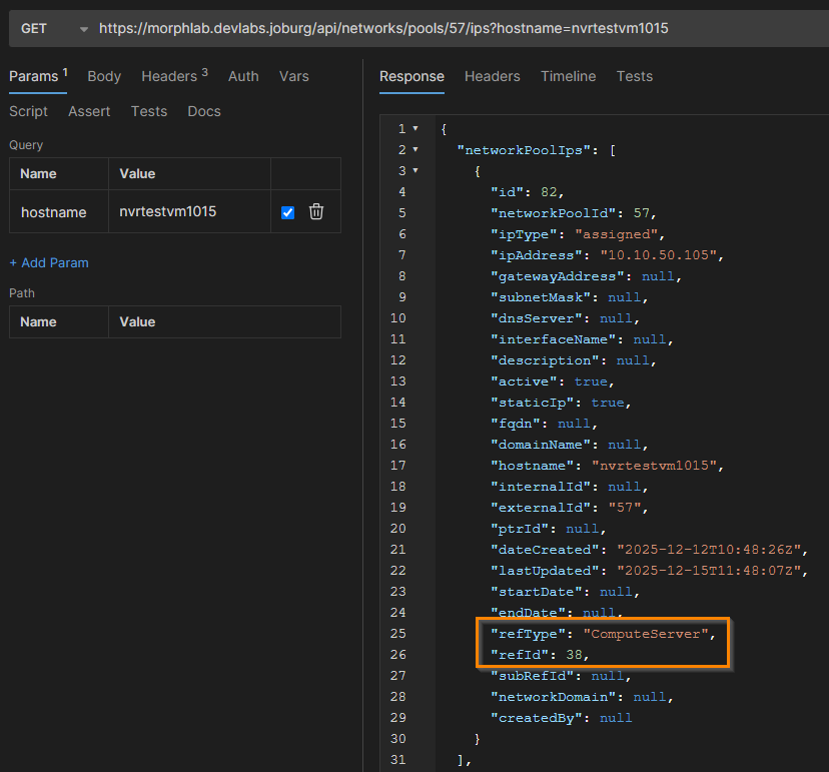
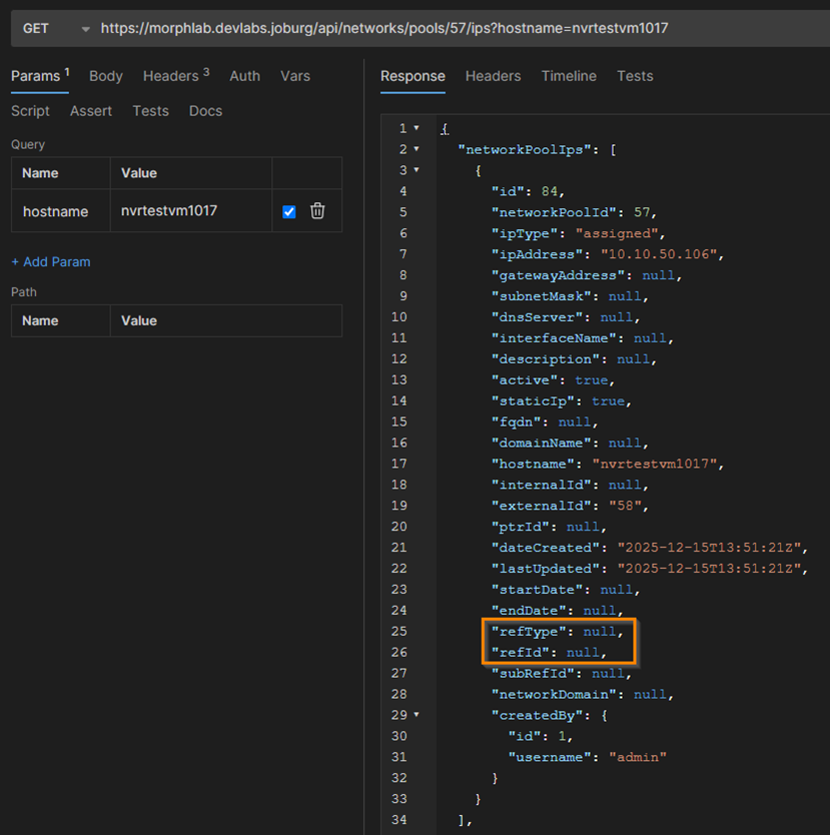
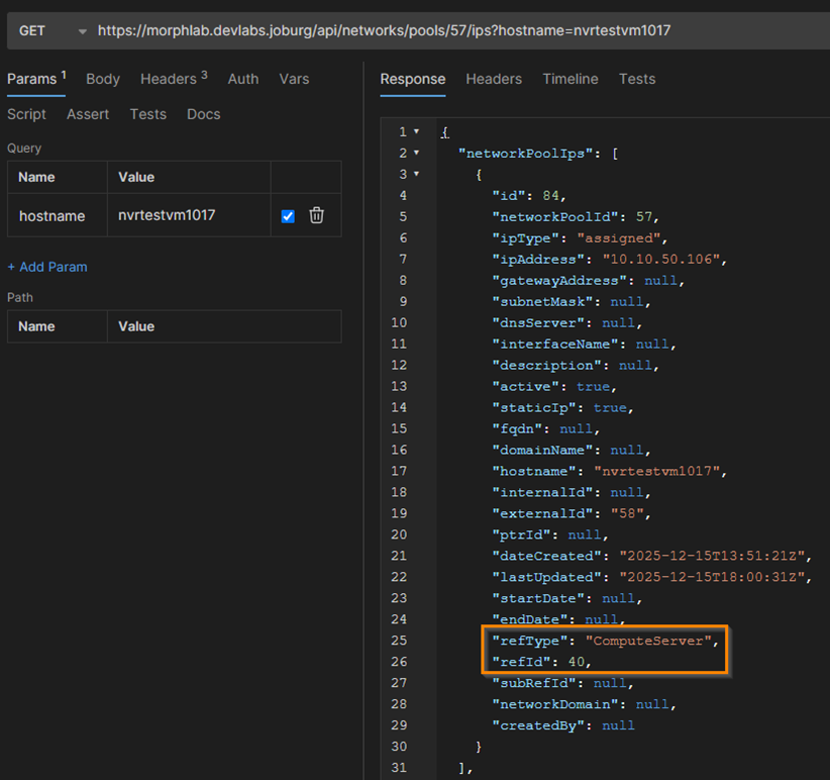
When a server is provisioned to a Network where an IP Pool is attached, reference links are created via the refType and refId properties of the NetworkPoolIp object, as shown below:
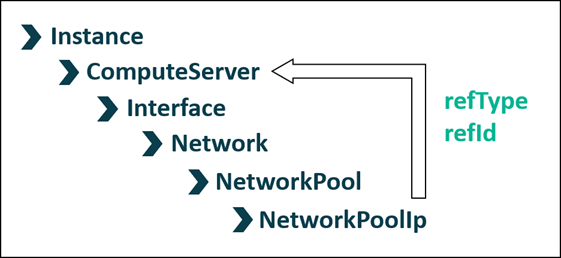
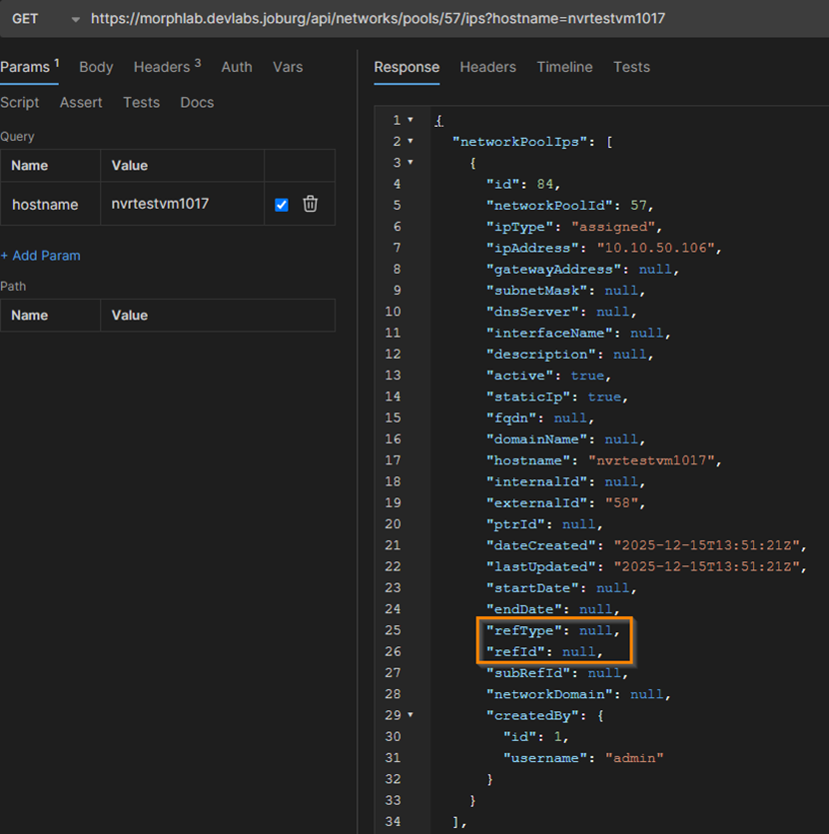
Upon provisioning, the refType property is set to the literal value of 'ComputeServer' and the refId property is set to the Id of the ComputeServer object itself.
When a NetworkPool is migrated/changed, or added to the Network after Instance provisioning, NetworkPoolIp records are created or synchronized from IPAM, without the refId link populated. This causes orphan host entries when workloads are later deleted.
To reproduce this, provision a single VM Instance into a simple lab, then add the IP Pool to the related Network, afterward.
Normal behavior
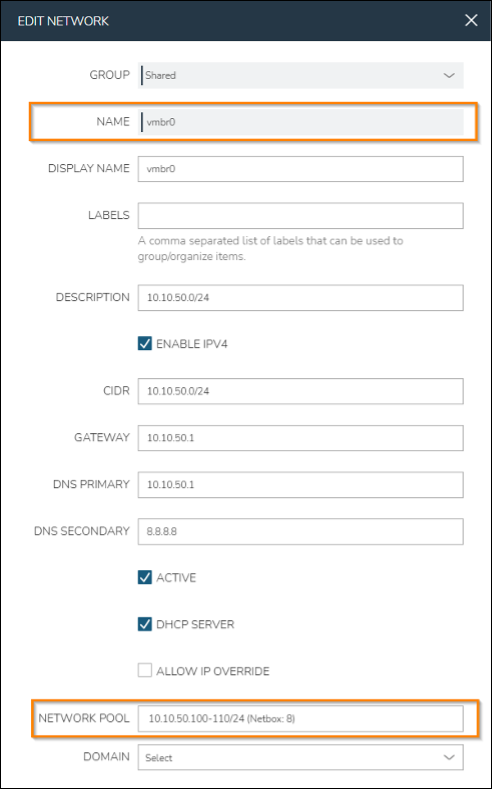
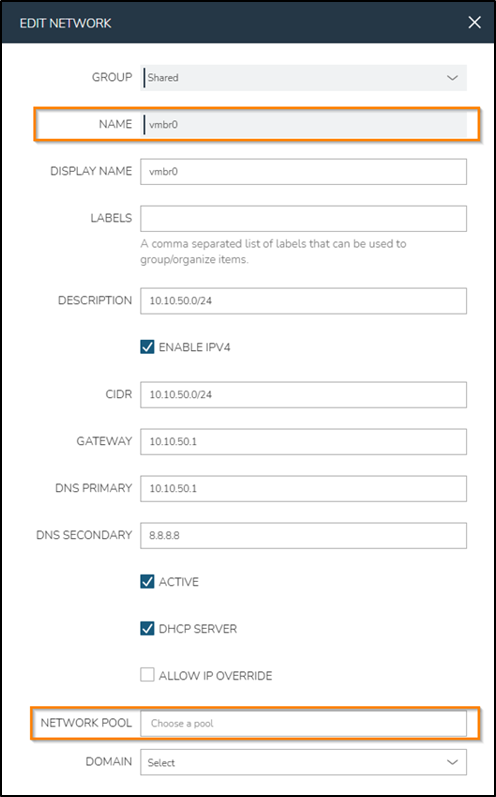
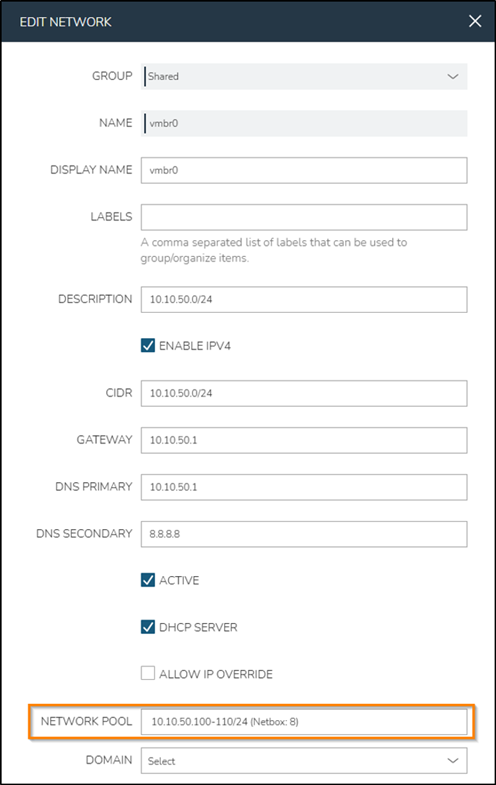
First, consider the normal day-to-day use case. The Network is associated with the IP Pool as shown below:
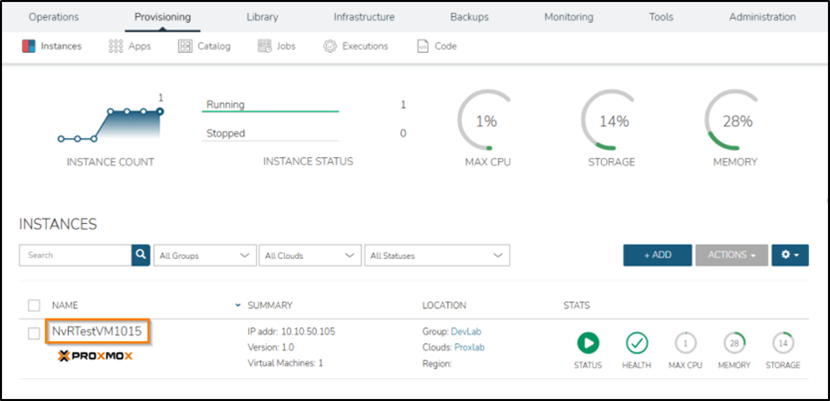
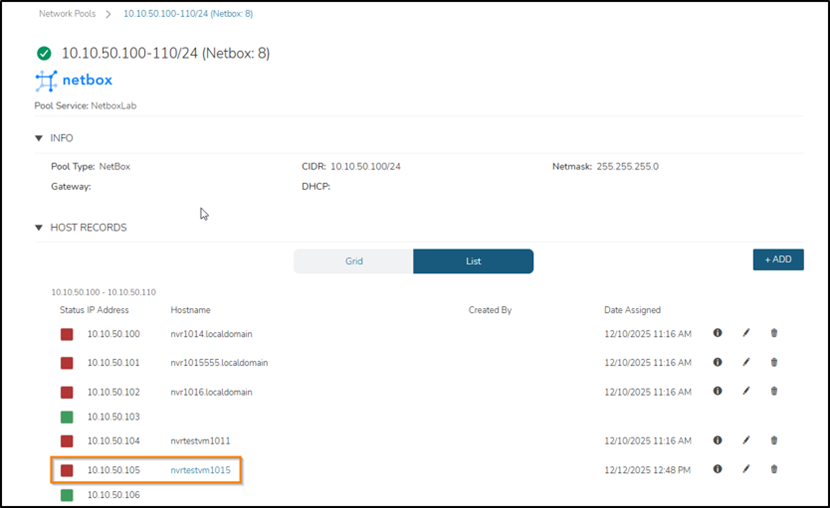
When provisioning a VM Instance into this Network, a Host Record entry is created in the IP Pool:
Querying the Host Record via the REST API shows the link back to the ComputeServer within the Instance:
Provision without IP Pool
To illustrate the broken reference issue, remove the Network-to-IP-Pool association:
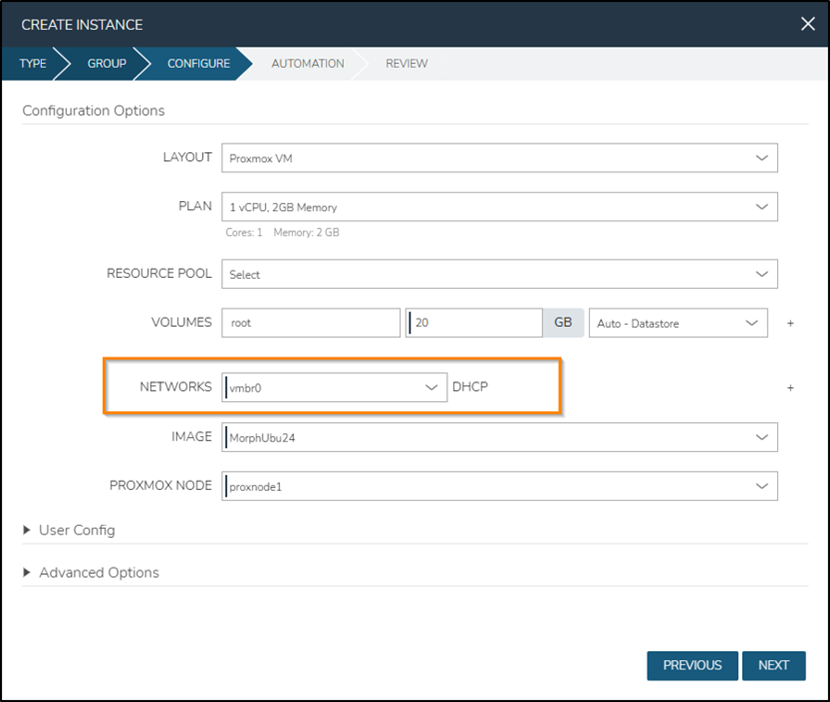
Then provision a VM Instance to the Network:
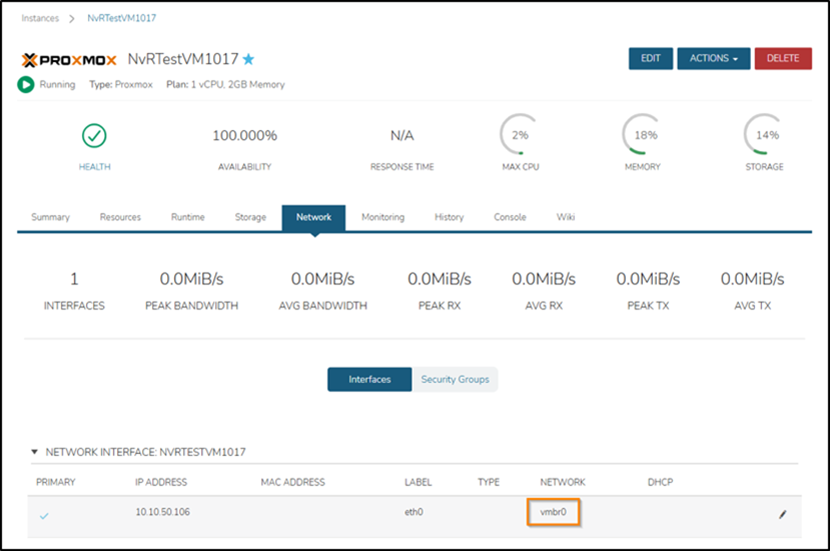
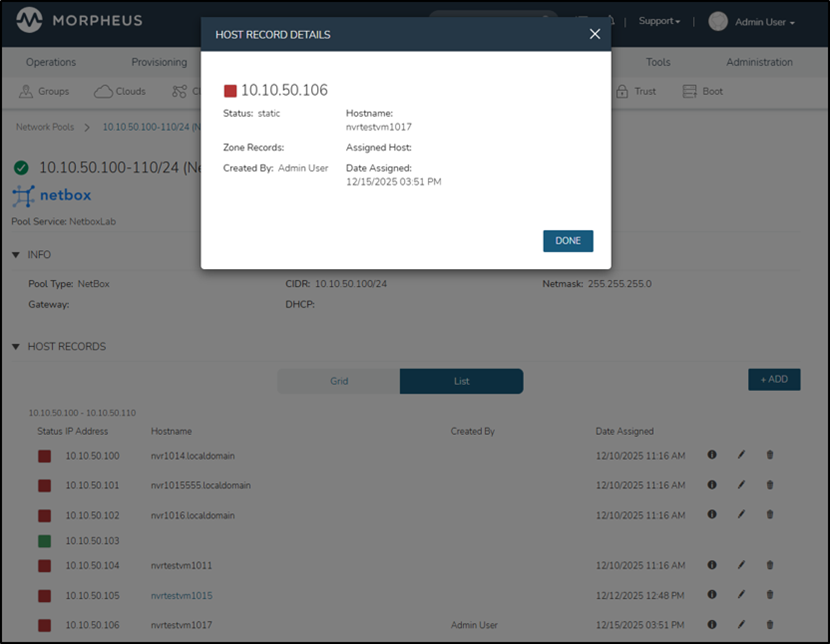
Next, create a Host Record entry manually within the IP Pool:
Finally, add the IP Pool back onto the Network:
This time, the REST API response shows that the refId property is NOT populated on the ComputeServer, despite the matching hostname on the VM:
Steps to compile and upload the Custom Task Plugin
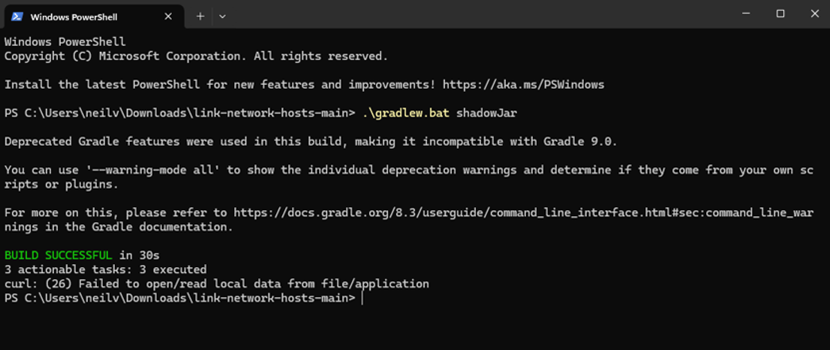
Download or clone the Plugin repository from https://github.com/neilvrhpe/link-network-hosts. Open the project directory and compile with the relevant gradlew (Linux) or gradlew.bat (Windows) script using the shadowJar argument:
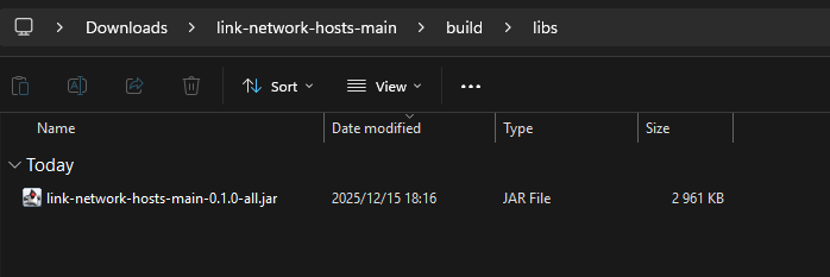
The compiled .jar file will be found in the build/libs subdirectory:
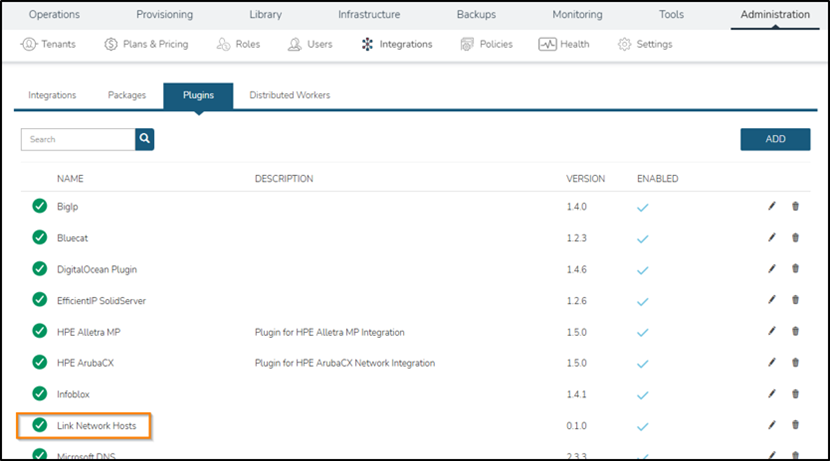
Upload the .jar file to the Administration > Integrations > Plugins > Add dialog. The Plugin should appear in the list as shown below:
Setup the Custom Task Workflow
Uploading the Plugin in the previous step introduces a new TaskType to the HPE Morpheus Enterprise appliance. This can be seen under the edit dialog of the uploaded Plugin:
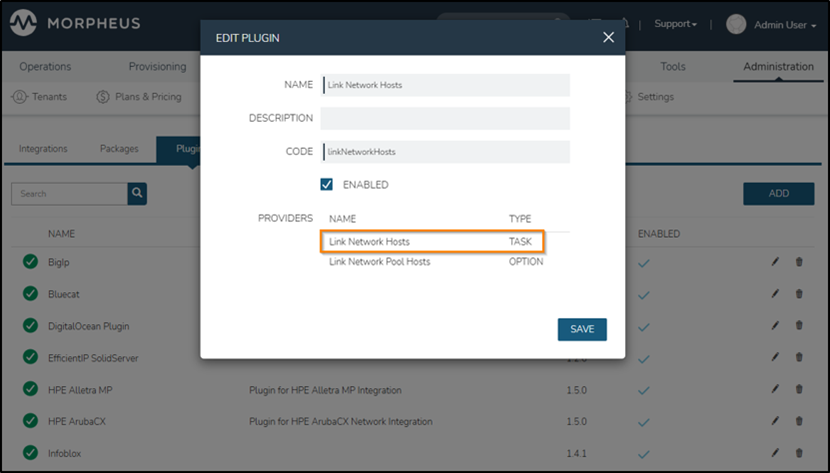
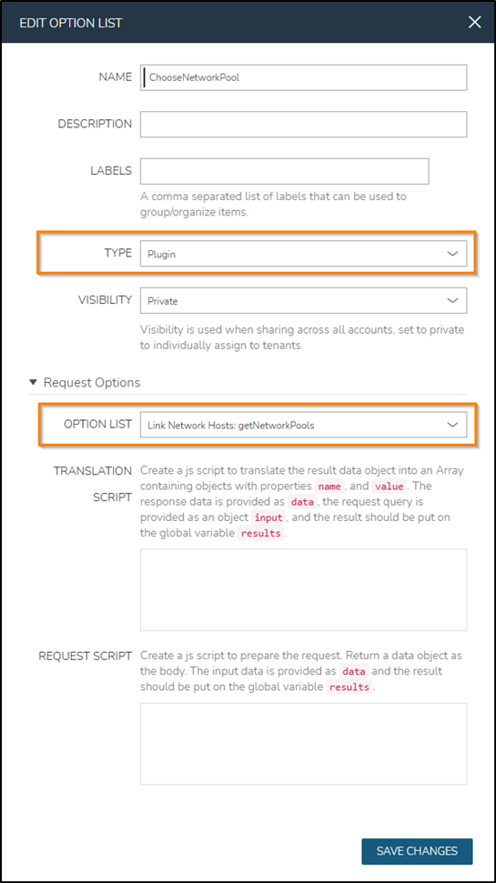
To use this new Custom Task Type in the UI, provide an OptionSource Input. Create the corresponding OptionList under Library > Options > Option Lists > Add. The type is Plugin and the Option List will be Link Network Hosts: getNetworkPools, as provided by the Plugin that was uploaded in the previous step. Provide 'ChooseNetworkPool' as the name, so that it matches the name in the next step:
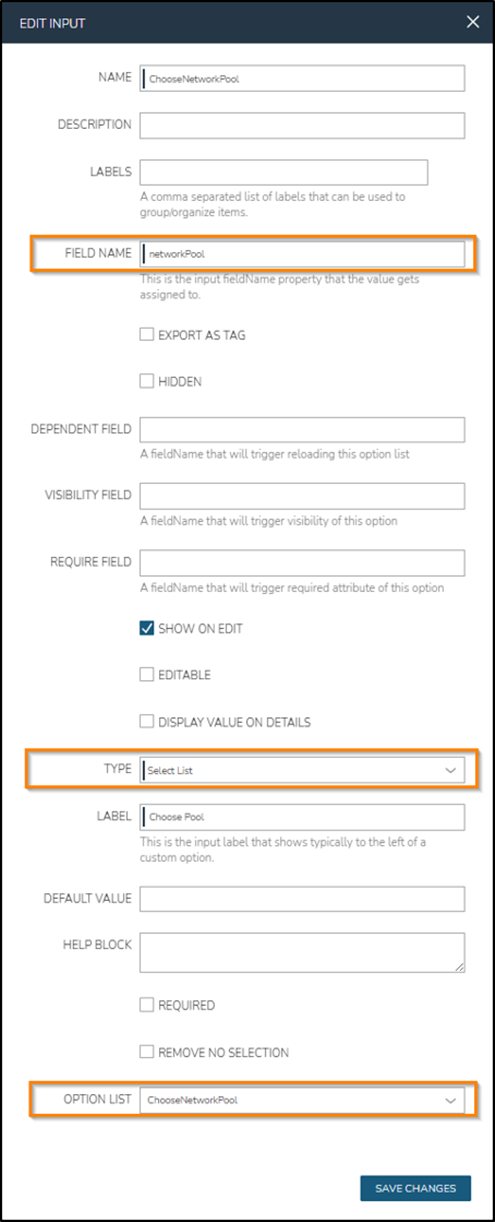
Next, create the Input that represents the OptionList entries to the end user dropdown in the UI. This is done using the Library > Options > Inputs > Add button. Then provide 'networkPool' as the Field Name for the Custom Task to reference in the next step. Choose Select List as the Type and use ChooseNetworkPool as the Option List field value:
To set up the Task, navigate to Library > Automation > Tasks > Add. Provide a Task Name and a Network Pool Id value of <%=customOptions.networkPool%>. This reference will insert the value from the Input created in the previous step.
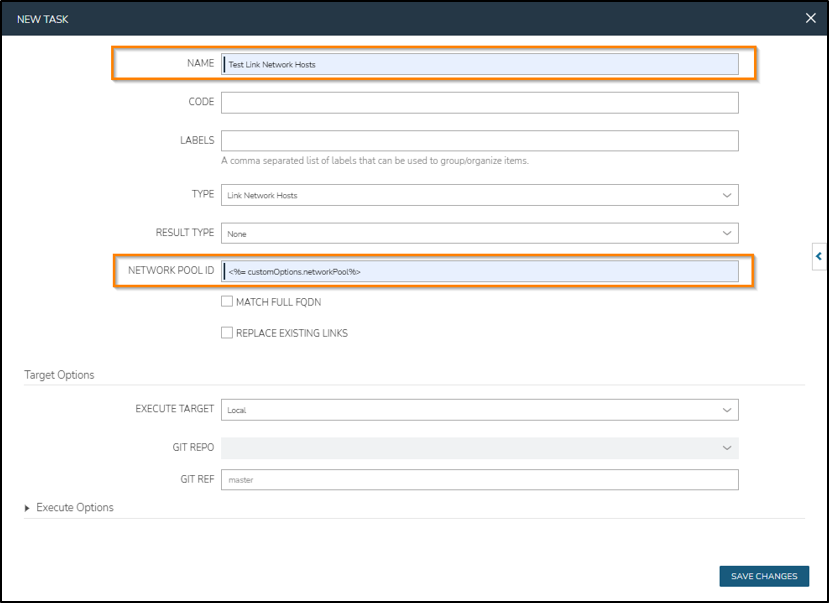
MATCH FULL FQDN
Checking this box will include the full domain name suffixed to the hostname in the match comparison. Unchecked, only the hostname portion is matched. Matching is case insensitive.
REPLACE EXISTING LINKS
Checking this box will overwrite any existing refId links when the hostname matches.
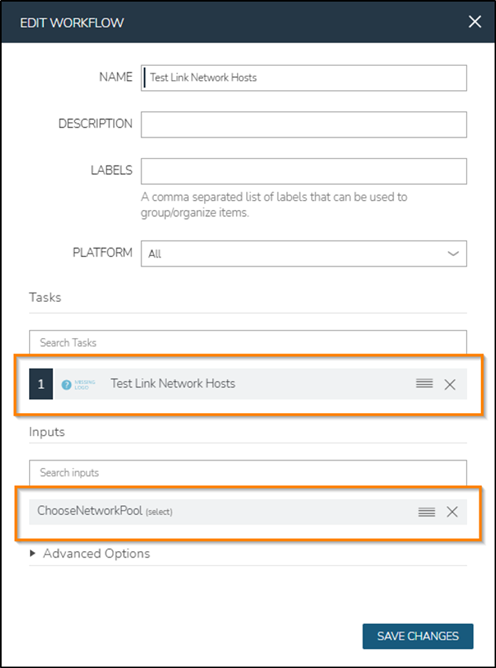
Next, create an Operational Workflow to run the Task with the correct Input context (Pool ID). Create the Workflow under Library > Automation > Add > Operational Workflow. Provide a name for the Workflow, add the Task from the previous step under Tasks and add the ChooseNetworkPool Input under Inputs.
Run the Workflow against the Network Pool
Review the REST API call to confirm that the host record refId property is not currently set against the provisioned ComputeServer:
Under Library > Automation > Workflows, click the name of the Workflow created in the previous step to view the Workflow details:
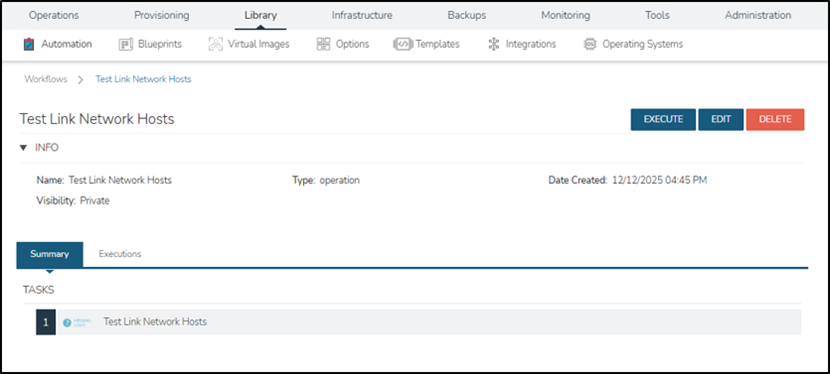
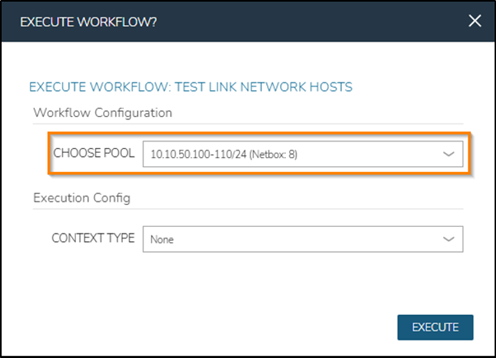
The Execute button brings up the Workflow execution dialog. Select the IP Pool that the test VM Instance is deployed to. The Execution Config/Context can be ignored, as this Task will always run on the local HPE Morpheus Enterprise appliance in its own context:
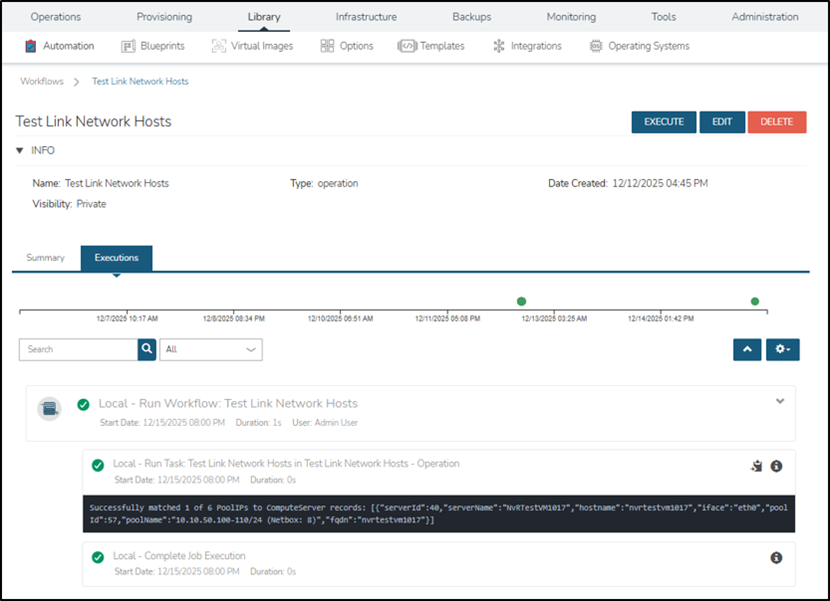
Under the Executions tab, view the output of the Task, showing which ComputeServer objects have been allocated to Host Records within the IP Pool, via the refId property:
Re-running the REST API call confirms that the refType and refId link was created:
Workflow via the API
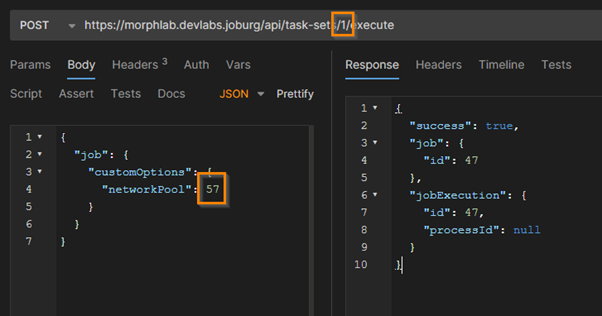
In large environments it would be impractical to execute the Workflow for each IP Pool by hand in the UI. For these scenarios, execute the Workflow via the REST API. Provide the id of the Workflow in the request URL and the id of the IP Pool to the networkPool body parameter to execute the POST request:
Next steps
From here, it would make sense to explore the unused possibilities around Custom Tasks. Whereas this example only ever runs on the local HPE Morpheus Enterprise appliance, Tasks can run on different targets (remote, resource) and against different contexts (instances, servers).
In essence, this post only explores a very particular use case to potentially assist in IPAM migrations and day 2 IPAM adoption.
At the more advanced end of the spectrum are Provider Types that model core infrastructure components. These include integrations for Clouds, Networks, Storage systems, and many others. Such Providers tend to be more complex because they interact deeply with HPE Morpheus Enterprise’s provisioning, synchronization, and lifecycle management layers. Understanding how these Provider Types fit together is key to building powerful, production-grade Plugins.
Explore the following resources for more information on the different Plugin/Provider types:
https://developer.morpheusdata.com
https://share.morpheusdata.com (follow the repository link under the Plugin details to see the source code of a Plugin)
https://github.com/hewlettpackard https://youtu.be/1twoNvPoEV4?si=elUEzCYGo88TIffX
Related

Streamlining hybrid cloud: Announcing the unified HPE/hpe Terraform provider v1.1.0
Apr 2, 2026
Cascading dropdown lists for HPE Morpheus Enterprise
Mar 20, 2026
Bulk onboarding of users in HPE GreenLake edge-to-cloud platform
Apr 24, 2024
Getting started with HPE GreenLake APIs for Data Services
Apr 2, 2024
Getting started with the HPE GreenLake Developer Portal
Mar 8, 2024
HPE GreenLake API - How to fetch and analyze Audit Logs in Python
Jul 26, 2024HPE GreenLake cloud scripting fundamentals
Jan 24, 2024